Collaborating on translations - from Excel to multi-language React (Native) app
Let's be honest, translating your app in multiple languages is often an underestimated and overlooked task. However, to grow quickly with your app, it is essential to provide it to as much people as you can in the language they need. In this article I will explain how you can adapt a workflow on how to coordinate your translations with colleagues / partners intuitively via excel and how you can integrate the excel spreadsheet in your react (native) app.
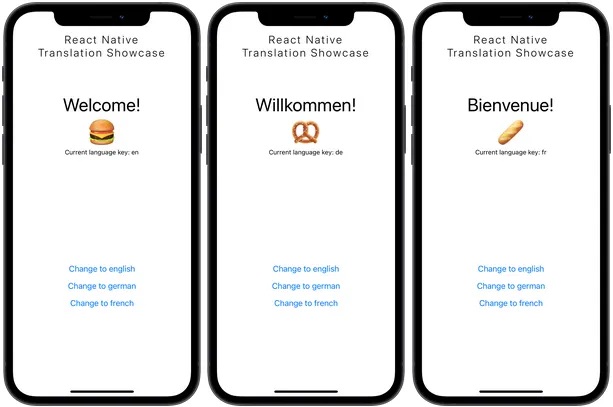
If you would like to test the following approach, you can follow the instructions of a showcase project to clone, install and run a sample app (React Native). The showcase app includes 3 languages which are translated via the i18n library by using the approach of this article, you can also find the script for converting an excel to json in the script.
Quick introduction into i18n (and generally localization libraries)
Localization libraries like i18n help us to localize the app based on the preferences of the user by setting a App language. The language key is usually defined as {language_code}-{country-code} e.g. en-US (compare to IETF Language tag — ISO-639 defines Language Codes and ISO-3166 defines Country Codes).
i18next goes beyond just providing the standard i18n features such as (plurals, context, interpolation, format). It provides you with a complete solution to localize your product from web to mobile and desktop
For the sake of simplicity, we will just use the language code, as we do not have to differentiate between country specific language settings. So we set our default and fallback language to 'en' for english. If we want to change the language we can do so by calling i18n.changeLanguage('de') to change the language to german.
Language is set, now lets translate the strings respectively: Instead of writing direct strings in our source code we use a translate method (provided from the library) with a unique translation key. For example, we can request the translation of a key as following: t('welcome'), this will render to a string based on the active language and the language definitions.
Lastly, how do we define translations in i18n? We can provide them directly within the i18n initialization. To keep a better overview, we can also outsource the translations in a JSON file, import them in for the initialization and use it as value for the resources key.
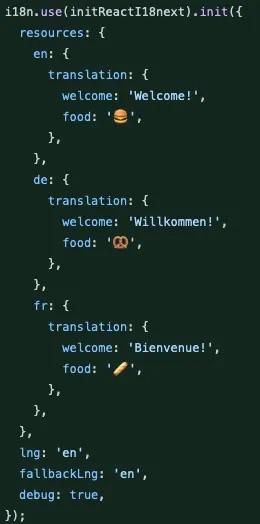
Shortcomings of JSON
Unfortunately, while developing and maintaining your app, you have to go back and forth in optimizing and creating keys for your translations. Although we as developer speak many (programming) languages, we usually are assisted by colleagues or partners for the in-app translations. Our translation logic works via a JSON file, but we cannot use this file format to collaborate in a team as it is not very intuitive for others.
So — how can we efficiently collaborate on these translations?
To do so, we decided to maintain the translations in an Excel sheet which is shared and synchronized via a shared directory (e.g. Dropbox). When we as developer implement new features, we add the key (which is used in the code) and the english translation to the Excel file. After that, our Product Team can add the other translations. By doing so, we can test and develop the new features quickly, while the colleagues can insert the translations in parallel.
Workflow
- Update Excel file (translations.xlsx) with translations
- Run Script (readFromExcel.py) → Generates JSON file (translations.json)
- App references generated JSON file in i18n initialization
- Use new translation keys in Source Code (e.g. App.js)
Example Excel sheet with 3 languages (English, German, French):

- Rows: keys that are used in the code
- Columns: language keys (en, de, fr)
Resulting JSON File:
{
  "en": {
    "welcome": "Welcome",
    "goodbye": "Goodbye"
  },
  "de": {
    "welcome": "Willkommen",
    "goodbye": "Auf Wiedersehen"
  },
  "fr": {
    "welcome": "Bienvenue",
    "goodbye": "Au revoir"
  }
}
To run the script, note that Python and packages like Pandas are required to be installed on your machine. Via the .env file, you can setup the Path to the excel file and the name of the generated translation JSON file. The script uses the env file, so you should place the .env file in the same directory as the readFromExcel.py script.
And that's it! You can now add and edit further translations to the Showcase Project and also use this approach in any other app where the localization is based on a JSON file. We use the same excel file for the React Native and React.js Web App.
Github Repo: https://github.com/ASchwad/react-translation-workflows